Loan approved, but the bank or payment center is asking for a Payment Reference Number (PRN) and you don't have one? SSS doesn't mail this to you or generate it automatically when your loan posts — you have to request it yourself from the My.SSS member portal, for whichever month you're paying. It takes about three minutes once you know where to look.
The short version
Log in to My.SSS → Payment Reference Number → Loans → find your loan under Active Loan/s Without PRN → Generate PRN → enter the amount you're paying → Submit Request. Your PRN then appears under Active Loan/s With PRN, ready to pay at any accredited channel. Already have your PRN and want to pay through GCash? Skip ahead to how to pay your SSS loan via GCash.
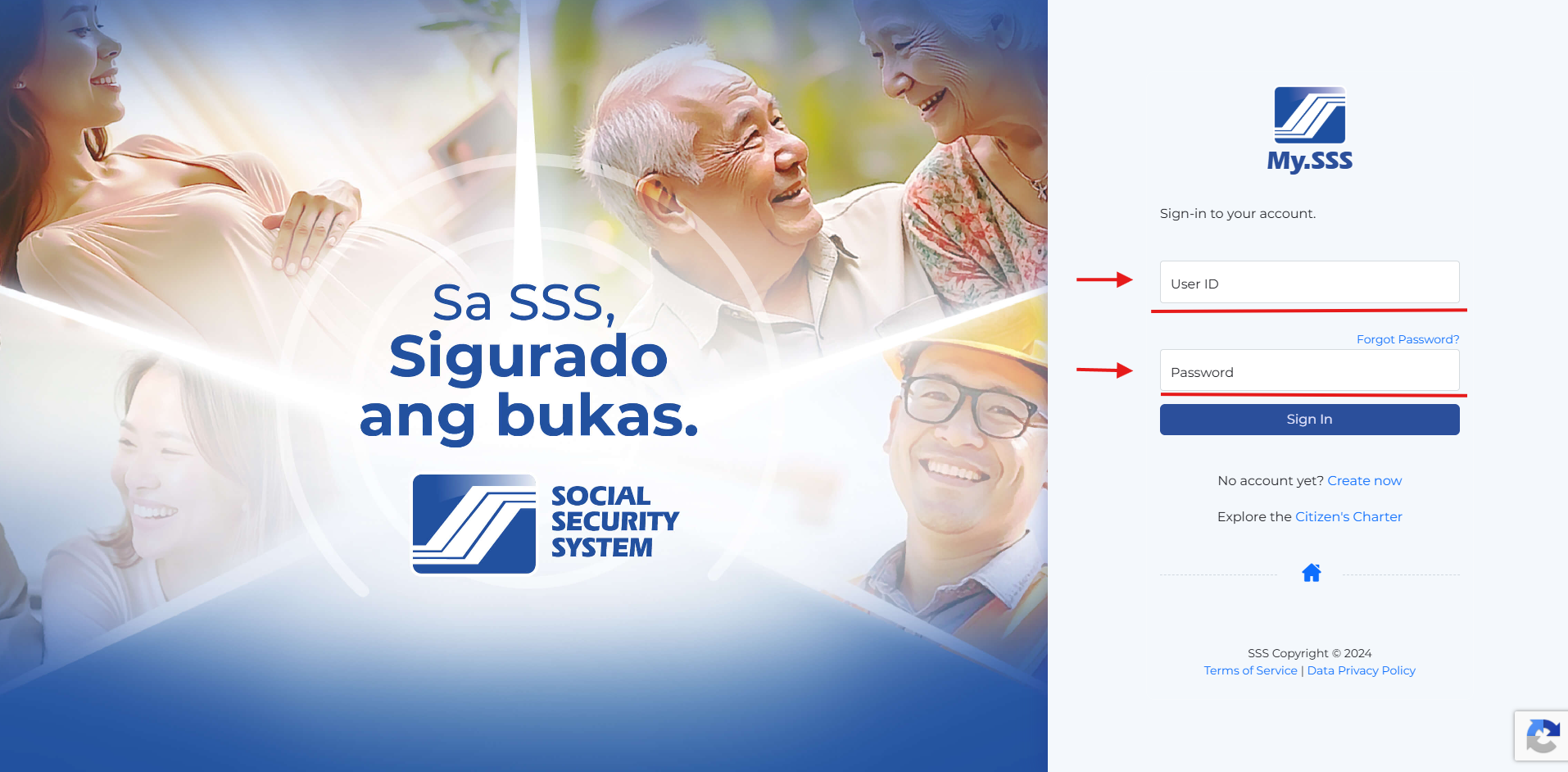
1. Log in to My.SSS
Go to the My.SSS member portal and sign in with your User ID and Password, then click Sign In.
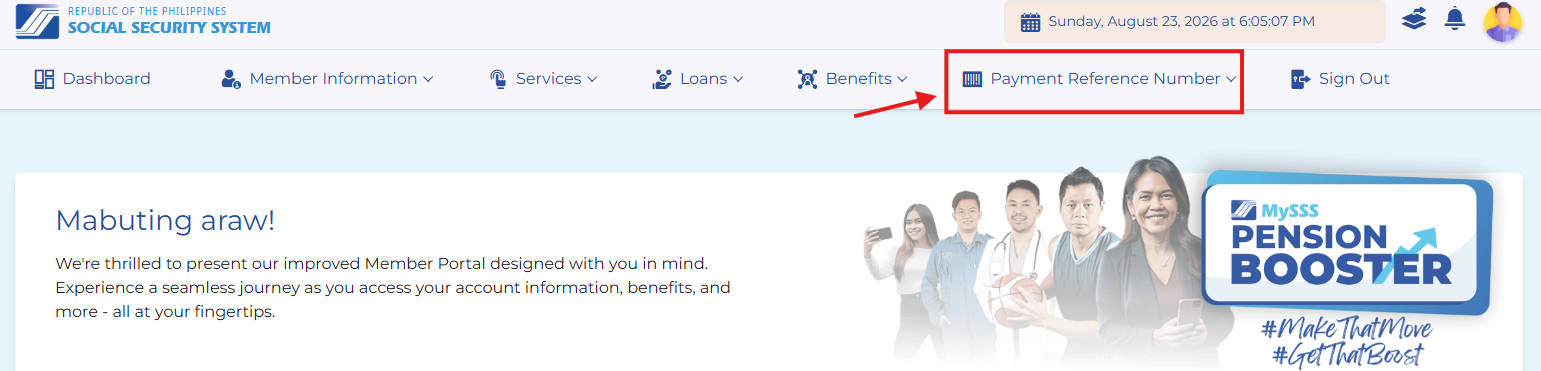
2. Open the Payment Reference Number menu
From the Dashboard, look at the top navigation bar and click Payment Reference Number.
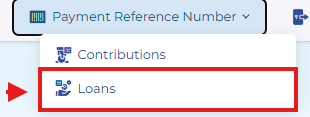
3. Select Loans
A small dropdown opens with two options — Contributions and Loans. Click Loans, since a salary loan payment isn't a contribution.
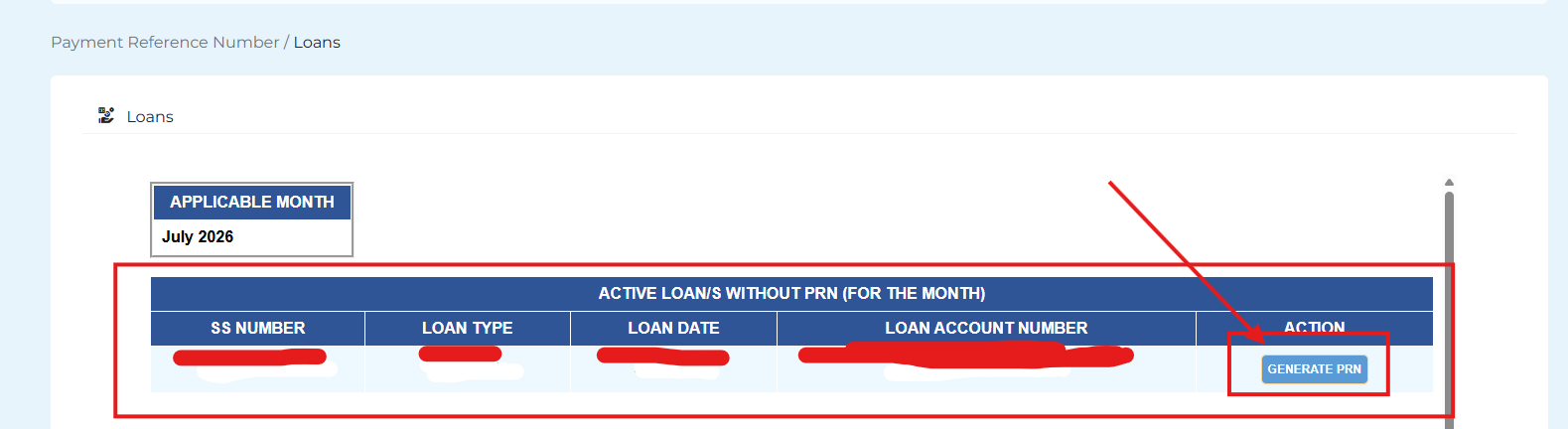
4. Generate the PRN
You're now on the Loans page. Check the Applicable Month at the top first — this determines which billing period you're generating a PRN for. Then, under Active Loan/s Without PRN (For the Month), find your loan and click Generate PRN in the Action column.
Nothing shows up under "Without PRN"?
That means every active loan already has a PRN for the selected month. Scroll down to Active Loan/s With PRN instead — you likely already generated one.
5. Enter the amount and submit
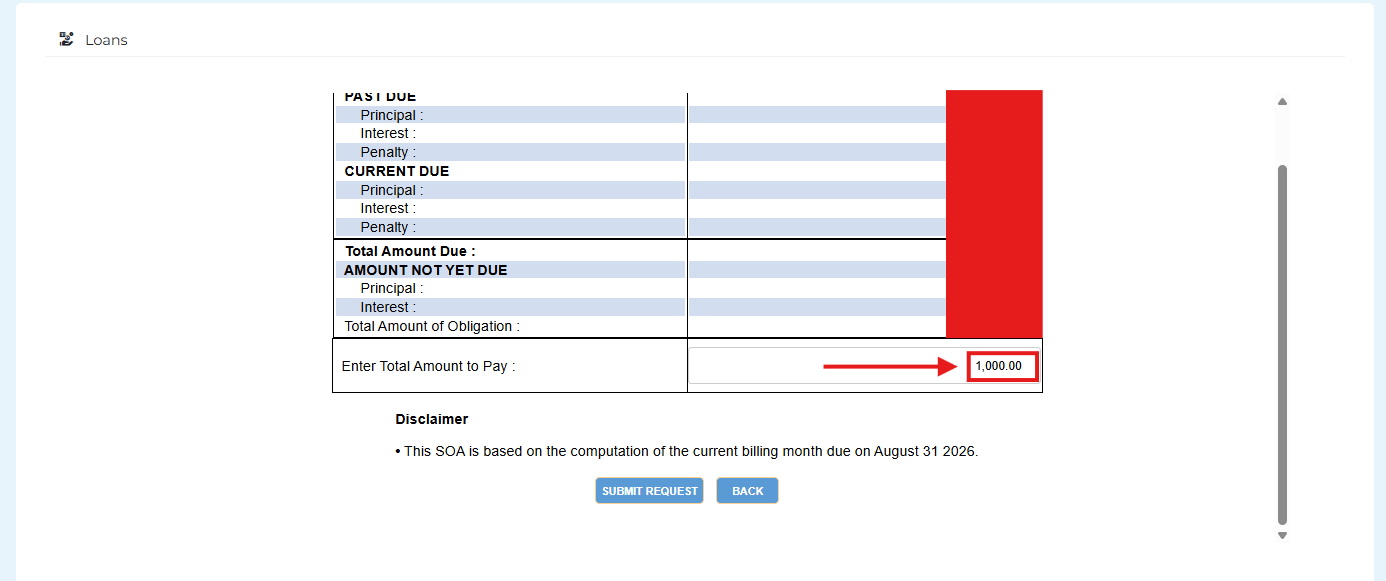
The Statement of Account opens, breaking down what's past due and currently due — principal, interest, and penalty for each. In Enter Total Amount to Pay, type the amount you intend to pay, then click Submit Request.
What amount can you enter?
It can be more than the amount currently due, but it must be greater than zero and cannot exceed the Total Amount of Obligation shown on the same screen.
6. Confirm and pay
You're returned to the Loans page, and your loan now appears under Active Loan/s With PRN (For the Month) with its own Payment Reference Number. Use the PRN button to view or download the reference itself, or SOA to pull up the statement again.

Take note of the PRN and the amount to be paid, then settle it through any accredited SSS payment channel — bank, over-the-counter, or an online payment app. Paying through GCash? Click here for how to pay your SSS loan using GCash. One thing worth remembering: a PRN is tied to the applicable month shown on the page, so if you miss that month, you'll need to come back and generate a new one for the next billing period.
Not sure how much you're even eligible to borrow, or how the interest and 24-month amortization work? Our SSS Salary Loan guide covers the eligibility and amount side — this one just covers paying it back.